 Slow-Burn Cinematic Intro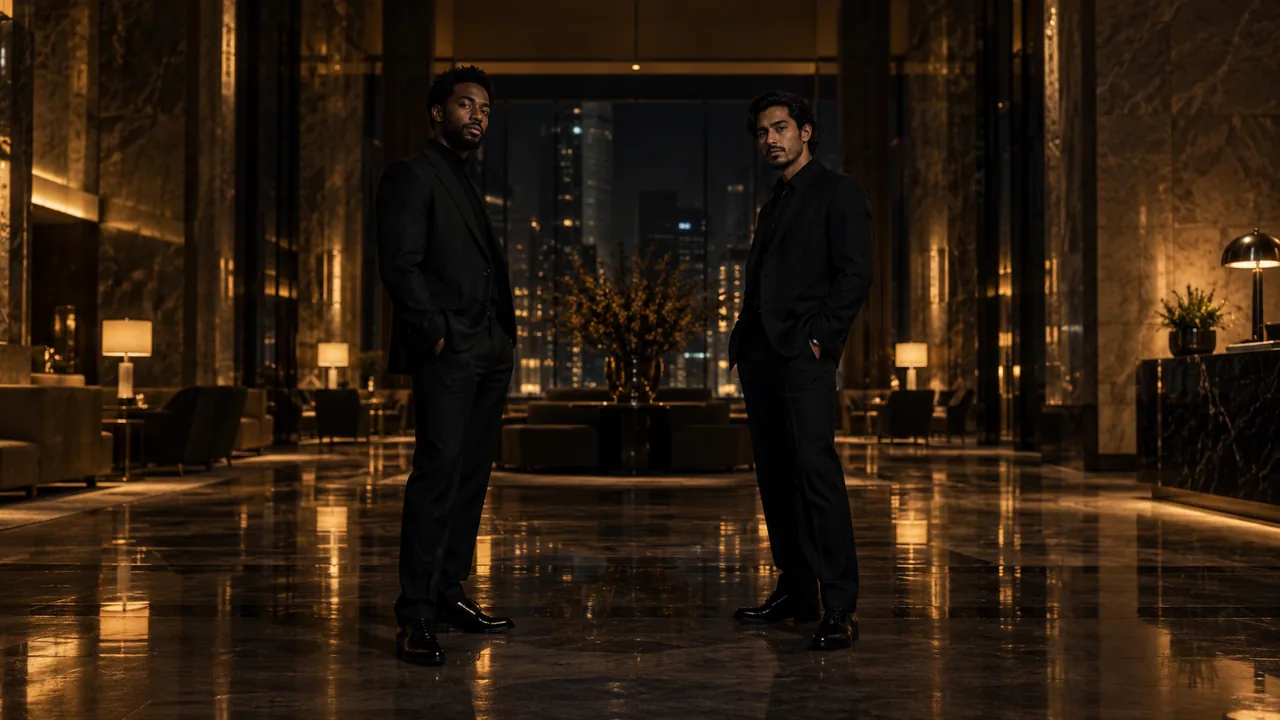
Choose a reference for this scene
The slow-burn idea builds anticipation instead of opening with fast cuts. In an empty grand lobby, two performers are directed to enter from opposite sides and meet under warm light. A controlled camera move and one closer shared moment give the scene its intended progression; choose 15 seconds for more room to unfold.
Two clear performer references
Upload one individual portrait for each performer. The two references supply the identities while the scene direction asks for arrivals from opposite sides.
Distinct, visible silhouettes
Include enough torso or full body in each portrait to describe clothing and posture. Keep the performer unobstructed rather than behind another person.
Faces that can survive closer attention
A wider body reference is useful only if the face of that performer remains clear. Check the original at a readable size before committing to a distant shot.
Uncomplicated posture
Calm standing positions provide a clean starting reference. A running, hugging or tightly tangled pose conflicts with a separate entrance and later meeting.
Photos to avoid
- A combined collage uploaded instead of an individual portrait in each slot.
- A distant image where neither face has enough visible detail.
- An intertwined pose that makes the two body outlines hard to separate.
From source portraits to a reviewed clip
Prepare two permitted portraits
Use one person in each of two separate portraits. Obtain permission from every identifiable person to appear in a synthetic video. Choose a JPG, PNG or WebP up to 4 MB for each portrait, and inspect facial detail before upload.
Check the local preview
Choose each required file in its own studio slot. Selection creates local previews; it does not submit the images to storage or the video provider. Replace or remove a portrait if its subject, crop or file is wrong.
Choose the frame
Use 9:16 or 3:4 for portrait video, 1:1 for a square post, or 16:9, 4:3 or 21:9 for a wider scene. Changing the aspect ratio does not change the credit cost for the same duration.
Choose your video length
This scene defaults to 10 seconds in 9:16. Your account stores credits; package cards show the video time they cover. A 15-second clip uses more credits than a 10-second clip. Unused credits stay in your balance, and you need enough for at least 10 seconds to start a new video.
Confirm permission, then generate
Use Generate only when the live service is available. The flow connects your account or guest session, uploads the required portraits in slot order and sends the scene request. Complete verification if it is required.
Recover the same task when uncertain
If the response is slow or unclear, use Check progress for the saved task instead of repeatedly starting new requests. Return with the same browser session when possible. An unknown response does not establish that the job failed.
Play the whole result
When the task completes, play the full video and inspect the scene-specific checks below. Save the result while its link is available. Starting another video uses additional video seconds.
What to check in the completed video
Track identity from each side
Follow each performer across the frame and check that their faces or outfits do not switch during convergence.
Inspect the meeting
Look for overlapping arms, merged shoulders or changing scale when the two people come close together.
Judge the pacing as a whole
Watch the entire output at your selected length. A beautiful opening still does not show whether the movement and final shared frame work for your intended edit.
When the result misses the intention
The two identities become confused
For another intentional render, choose two individual portraits with equally clear faces and distinct silhouettes. Keep their performer-slot order consistent.
The meeting merges bodies
Use individual portraits with clean body outlines and uncomplicated poses. The current studio does not provide manual path or contact editing.
The scene reaches its payoff too early
The fixed recipe supplies the pacing intention but not exact timing controls. Review the output and adjust your own edit rather than assuming a prompt example changes the generator.
Questions before you start
Why use two portraits for the separate entrances?
Each portrait supplies one performer identity reference. The recipe asks the provider to stage separate arrivals for the pair; upload the portraits in their own slots rather than combining them.
Does choosing a file upload it immediately?
No. File selection creates a local preview. A live Generate request uploads the source to configured storage and sends its reference to the video service after permission confirmation.
Should I generate again if the request looks stuck?
Check the saved task first. A slow or uncertain response can still belong to an active job. Starting another video uses additional video seconds.
MAKE YOUR SCENE